Quick Start
Thirty minutes from a fresh import to a clip you edited yourself.
1. Give it a character to animate
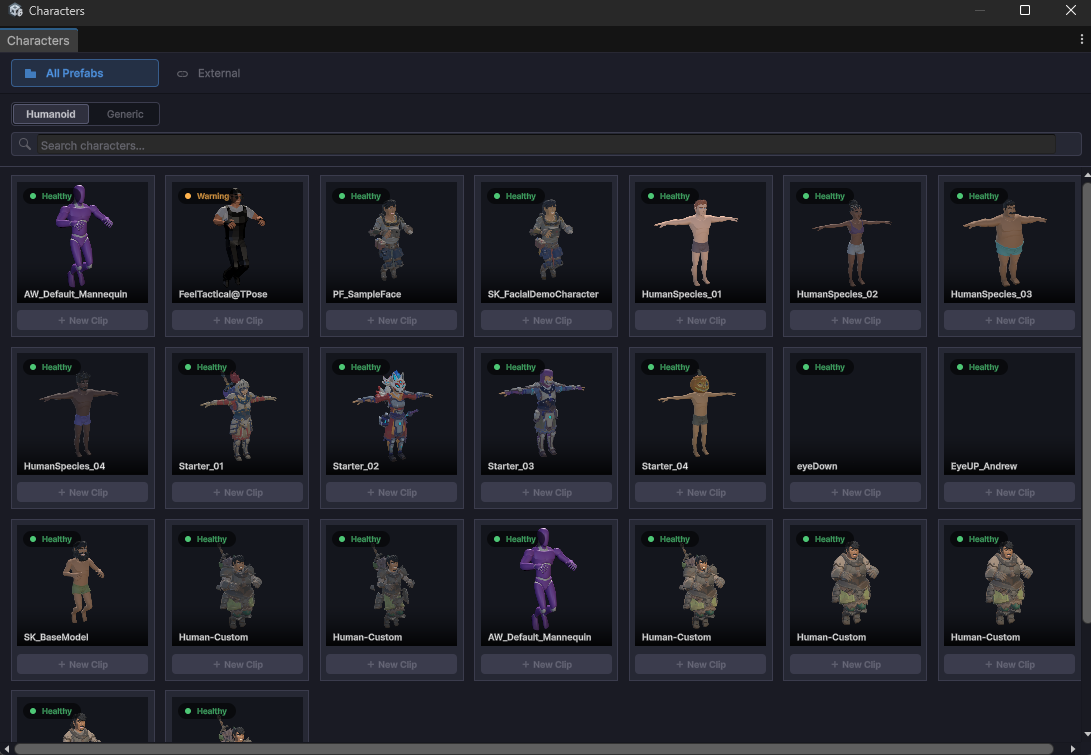
Almost everything visual - thumbnails, previews, pose editing - needs a rig to play clips on. This is the one setup step you cannot skip.
- Tools → Animation Workbench → Characters (
Ctrl+Shift+C) - Wait for the project scan. Humanoid and generic characters are listed as it finds them.
- Mark one as Default Character.
That applies an AWDefaultCharacter label to the prefab, which is why the choice syncs across the project and survives being shared with your team. Details and per-pipeline variants: Character Setup.
2. Open the browser and find something
Tools → Animation Workbench → Open (Ctrl+Shift+A)
The first scan runs asynchronously - you can start browsing while it fills in. Thumbnails render one at a time in the background and are cached to disk, so the second visit to a folder is instant.
Try these in order:
- Type into the search box and watch the list narrow
- Toggle between grid and list, and drag the size slider
- Click a clip to open the inspector panel beside the list
- Double-click for the single-clip view with an orbit preview
- Right-click for the context menu - reveal, compare, open in the editor
More: Animation Browser.
3. Edit a clip
Open a clip in the Keyframe Editor (Ctrl+Shift+K), from the browser context menu, or by right-clicking an .anim asset → Animation Workbench → New Keyframe Editor.
You can open as many editor windows as you like - one per clip is a normal way to work.
Two things worth knowing on day one:
Ctrl+Ssaves a version, it does not just write the file. Versions are how you get back to Tuesday's timing on Friday.Ctrl+Lenters Pose Edit - a stage character appears in the Scene view and you pose it with handles. Your prefabs are never touched; the result is keyed into the clip.
4. Create a clip from scratch
- Assets → Animation Workbench → New Animation Clip with a prefab or folder selected in the Project window, or
- Right-click a prefab instance in the Hierarchy → Animation Workbench → New Animation Clip
The new clip opens directly in the Keyframe Editor.
Menu reference
Everything lives under Tools → Animation Workbench, grouped by non-clickable section headers.
General
| Item | Shortcut | What it does |
|---|---|---|
| Open | Ctrl+Shift+A | The main animation browser |
| Keyframe Editor | Ctrl+Shift+K | Standalone timeline & curve editor |
| Settings | - | All Workbench settings |
| Characters | Ctrl+Shift+C | Character database & default characters |
Support
| Item | What it does |
|---|---|
| Documentation | Opens this site |
| Join Discord | Opens the community Discord |
| Report a Bug | The in-editor Feedback Hub |
| Support this Project → Buy me a coffee | Tip jar |
| Support this Project → Upgrade to Pro | Shown in Lite only |
Helpers
| Item | What it does |
|---|---|
| Show Welcome Window | Re-opens the welcome/setup window |
| Show Release Notes | What changed in this version |
| Character Diagnostics | Tracks down avatar and rig problems |
| Export Humanoid Bone Mapping | Exports the humanoid muscle/bone map |
Performance
| Item | What it does |
|---|---|
| Profiler | The Workbench's own performance profiler |
SFX
| Item | Shortcut | What it does |
|---|---|---|
| Audio Library | Ctrl+Shift+X | Cues, variations and channels |
| Audio Clip Browser | - | Audition project clips and turn them into cues |
| Bake Runtime Audio Database | - | Forces a rebake - runs automatically before builds |
Project window context menu
Right-click in the Project window → Animation Workbench:
| Item | Applies to |
|---|---|
| New Animation Clip | A prefab or a folder |
| Reveal | Clips - locates them in the browser |
| New Keyframe Editor | Clips - opens them in a fresh editor window |
| Export Skeleton Definition | A character prefab - writes a skeleton-only FBX |
The same New Animation Clip entry exists on the GameObject context menu in the Hierarchy.